
Setup XenoTrader 1.0 Crypto
XenoTrader is built to be as simple as possible, but here are some helpful steps to get you started
1.
XenoTrader works by connecting to a Kraken trading account. Ensure you have a Kraken account and funds have been deposited.
2.
Trades are performed using a USD starting balance, so ensure that your funds are converted to USD.
3.
Download Ensure you have created an API connection in your Kraken settings. Login to Kraken in your browser, click the account icon, Connections & API and then click "Create API Key".

Ensure "Query", "Query open orders & trades", "Query closed orders & trades", "Create & modify orders", and "Cancel & close orders" are all checked off. These are the important ones to allow XenoTrader to trade properly. Make sure that the "WebSocket interface" is also turned on, and then click save.

4.
Your Kraken API key and Kraken private keys will then be given to you. Make sure you save these in a safe place and do not give these keys to anyone. You will need to enter them into XenoTrader in order it to connect to your account and make trades.

5.
On XenoTrader, specify the number of trades you would want it to be in at once (maximum, the percentage of your account you would want it to use to trade, and then enter your Kraken keys. Click Save Account and then Save.
6.
On Click the Home page of XenoTrader and click Start.
Setup XenoTrader 2.0 & 1.0
XenoTrader is built to be as simple as possible, but here are some helpful steps to get you started
1.
XenoTrader works by connecting to Interactive Brokers. Ensure you have an IBKR account and funds have been deposited.
2.
Trades are performed on US assets, so ensure that your funds are converted to USD.
3.
Download either Interactive Brokers TWS (Trader Work Station) or IB Gateway. This is how XenoTrader connects to your account. Using IB Gateway is recommended.
4.
Do On the computer or laptop that you will be running XenoTrader, open your IBKR app and login. You will need to change some of your settings as shown below.
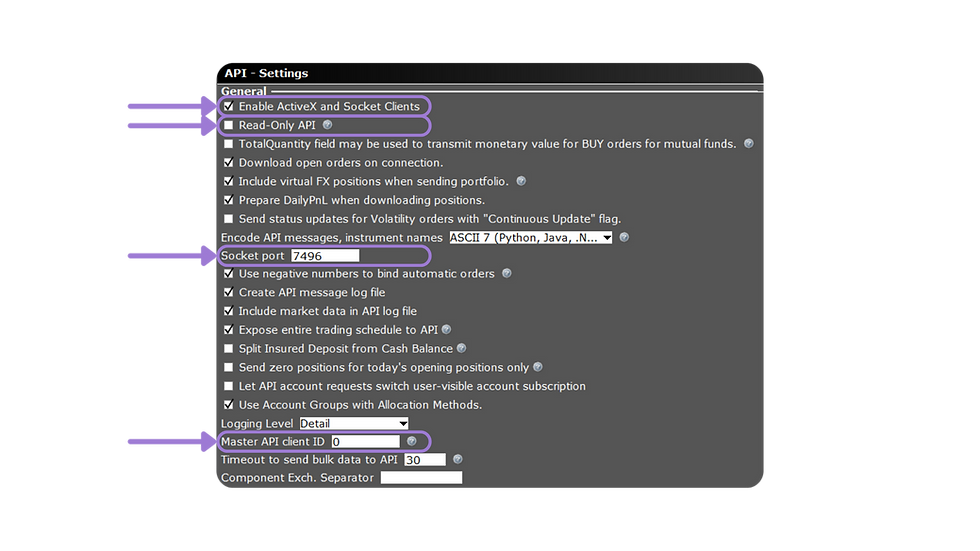
Ensure "Read-Only API" is turned off, "Socket Port" is set to 4001 if you are using IB Gateway and 7496 if you are using IBKR TWS. "Master API client ID" should be set to 0. If you are using IBKR TWS, you will also need to ensure "Enable ActiveX and Socket Clients" is turned on.
To prevent any issues with XenoTrader executing trades, you may also want to check off all bypass options in the Precautions section of the settings.
5.
Click "Apply" and save your settings.
6.
Once you have downloaded and extracted XenoTrader, run it. Login with your Stockminds account when you are prompted.
7.
On the settings section of XenoTrader, make sure you have the correct IBKR app selected (either TWS or Gateway), and then enter the $ amount that you want XenoTrader to use.
8.
On Click the Home page of XenoTrader and click Start.
Important Notes
-
For best results, refrain from trading manually while XenoTrader is running. XenoTrader is designed to continue where it left off, so you can stop trading and then start again if you need to.
-
Do not modify or cancel orders sent by XenoTrader.
-
For XenoTrader to function correctly, your computer cannot be locked or in sleep mode. Make sure your settings are set to prevent this.
-
If you are every confused about what something means, you can hover over the text and a description will pop-up.
-
XenoTrader will require you to enter your login details once a week for security. You will get a message/alert if you need to login again.
-
Once you start trading, you can leave XenoTrader running 24/7 and it will work as long as it can connect to Interactive Brokers. Interactive Brokers will automatically restart every night and XenoTrader should connect, but it is best to check that there aren’t any errors. If you notice it is not connecting, try stopping trading, closing Interactive Brokers and then open again and login.
-
Interactive Brokers requires authentication at least once per week (usually Sunday morning). It will automatically log you off and you must login again, so make sure it is working before trading on Monday.
-
All values are provided in USD.
Troubleshooting
Closing Positions
XenoTrader is designed to properly close positions and cancel orders at the end of the trading day. If you need to stop trading earlier, make sure you properly have it close any open trades.
1.
While trading is currently active, go to the Settings page and check off the "Close Positions Button" option.
2.
Go the the home page where you will see a new "Close" button. Click it to have XenoTrader properly close your trades. Wait for it to confirm that your trades were closed.
3.
You can now properly stop the trading and close XenoTrader.
Randomly Closing & Not Opening
If XenoTrader wasn't allowed to close correctly, it may still be running in the background. To fix this, restart your computer or go to your Task Manager and make sure all instances of XenoTrader are ended before running it again.